
A 1-second delay in page load time reduces conversions by 7%. For a salon website with a booking page, that means every extra second your site takes to load is costing you real appointments — every single day.
If you’re wondering how to speed up salon website performance, you’re focusing on one of the highest-impact improvements you can make for your business. I’ve optimized the speed of dozens of salon websites across my 300+ projects. The difference between a slow salon website and a fast one isn’t just a better Google score — it’s more completed bookings, lower bounce rates, and stronger local search rankings. This post gives you exactly what to do, in the right order, with the specific tools I use on real client projects.
Disclosure: This post recommends tools and services based on personal use and experience. If I join an affiliate program for any of these in the future, I’ll clearly mark those links as affiliate links.
Why Salon Website Speed Matters More Than You Think
Most salon owners think of speed as a technical issue. It isn’t — it’s a revenue issue. A slow booking page means clients abandon mid-process and call a competitor instead. A slow mobile site means Google ranks you lower in local search results. A fast website means more visitors reach your booking form, more of them complete it, and more of them show up for their appointment. Speed is a booking conversion tool — not a luxury.
How Fast Should Your Salon Website Be?
Before touching anything, set a clear target and measure where you are right now:
Your targets:
- Load time: under 3 seconds on mobile
- Google PageSpeed score: 80+ on mobile, 90+ on desktop
Free tools to measure:
- GTmetrix — detailed speed report with specific recommendations
- Google PageSpeed Insights — measures Core Web Vitals directly
Test your current speed on both tools before making any changes. Screenshot your scores. You’ll want to compare before and after once you’ve completed all 8 steps.
8 Steps to Speed Up Your Salon Website
Step 1 — Switch to Fast Hosting
What it is: The server your website lives on determines your baseline speed — before any optimization technique kicks in.
Why it matters for salons: No caching plugin, no image compression, no CDN can fully compensate for slow hosting. I’ve seen salon websites jump from a 45 PageSpeed score to 78 just by moving from cheap shared hosting to Hostinger — before touching anything else.
How to do it: I personally host SpaSalonWeb.com on Hostinger and recommend it to every salon client I work with. The reason is specific — Hostinger runs LiteSpeed servers, which process WordPress requests significantly faster than the Apache servers used by most budget hosting providers. LiteSpeed is not just marginally faster — in real-world WordPress tests it consistently outperforms Apache by a significant margin, especially under traffic load.
Affiliate link — I earn a small commission if you sign up, at no extra cost to you.
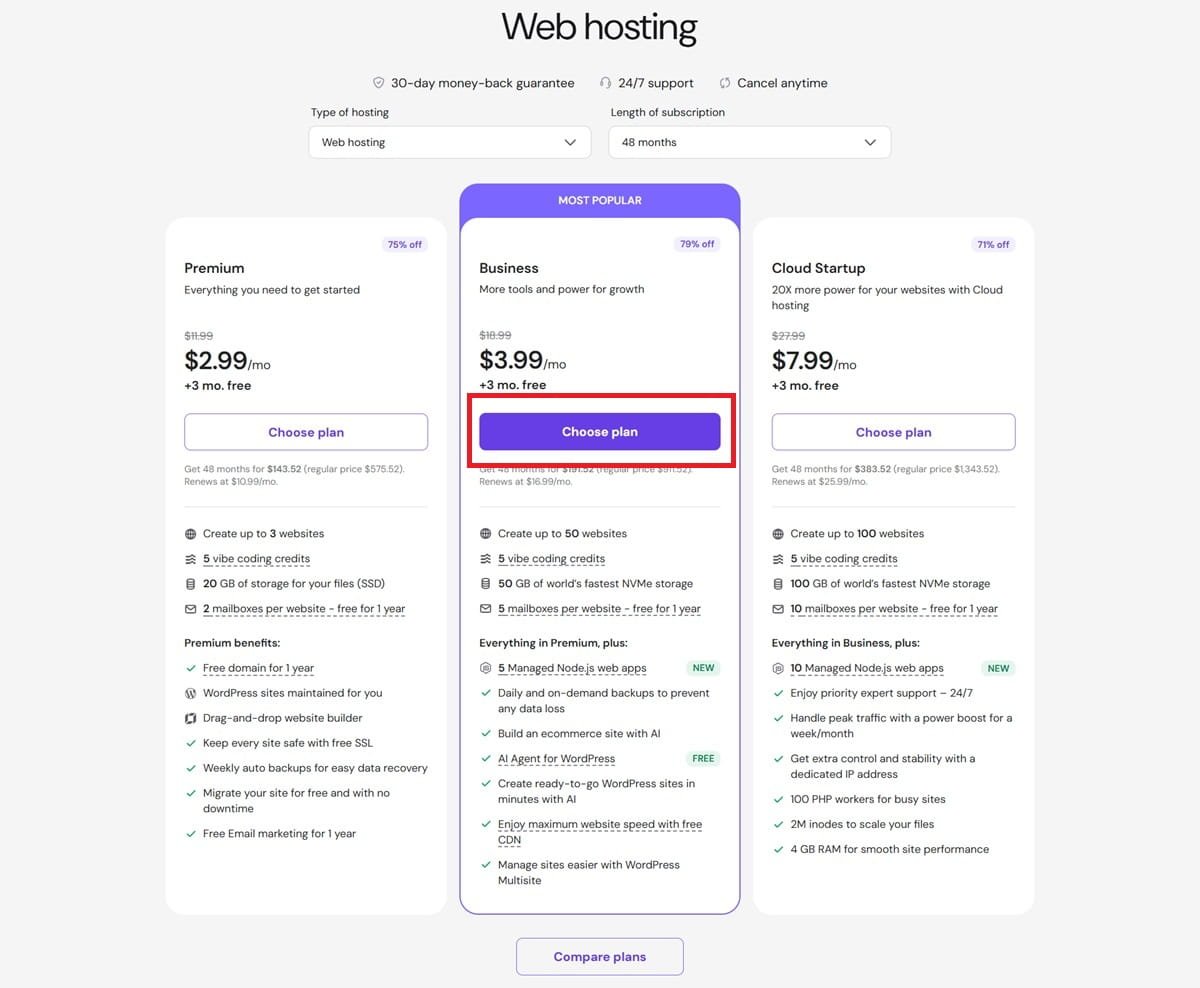
Get the Premium WordPress Hosting plan — it includes LiteSpeed servers, 100GB NVMe storage, free SSL, and a free domain. Everything your salon website needs on the fastest available server technology for WordPress.
You can read more about why I recommend Hostinger on my Hosting page.
Expected improvement: Often the single biggest speed gain of all 8 steps — especially if you’re currently on cheap shared hosting.
Step 2 — Install LiteSpeed Cache Plugin
What it is: A free WordPress plugin that works natively with Hostinger’s LiteSpeed servers to dramatically improve your website’s loading speed.
Why it matters for salons: LiteSpeed Cache handles page caching, browser caching, image optimization, and CSS/JS minification all in one free plugin. For a salon website with gallery images, a booking page, and multiple service pages — this plugin alone delivers noticeable speed gains.
How to do it:
- Go to Plugins → Add New in WordPress
- Search LiteSpeed Cache
- Install and activate
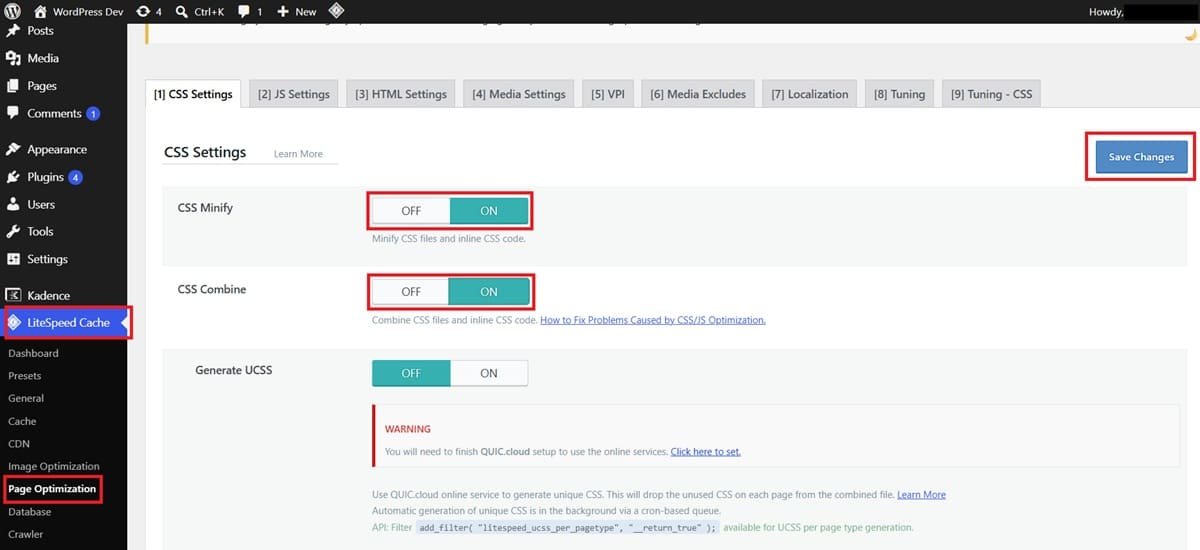
- Go to LiteSpeed Cache → General → Cache → set Enable Cache to ON
- Go to Page Optimization → CSS Settings → enable Minify CSS and Combine CSS
- Go to Page Optimization → JS Settings → enable Minify JS
- Go to Image Optimization → enable WebP Replacement
- Save all settings
One important note: if you see any visual issues after enabling CSS/JS minification, go back and disable the combine options first — some themes and plugins don’t handle combined files perfectly.
Expected improvement: Significant — especially on repeat visits where cached pages load near-instantly.
Step 3 — Optimize Your Images
What it is: Compressing and resizing your photos before and after uploading them to WordPress.
Why it matters for salons: Images are the #1 cause of slow salon websites. Salon sites are image-heavy by nature — treatment room photos, staff portraits, before-and-after galleries, service images. Unoptimized images can make a page 5–10x heavier than it needs to be.
How to do it:
Before uploading:
- Resize images to maximum 1200px wide before uploading — no salon website needs a 4000px photo
- Use Squoosh.app (free, browser-based) to compress images without visible quality loss
- Target file size: under 150KB per image for most uses
After uploading:
- LiteSpeed Cache (Step 2) automatically converts your images to WebP format — a modern image format that’s 25–35% smaller than JPG at the same visual quality
- If you’re not using LiteSpeed Cache, install ShortPixel or Imagify as alternatives — both have free tiers
For existing images already on your site:
- In LiteSpeed Cache → Image Optimization → click Send Optimization Request to optimize all existing images in bulk
Expected improvement: 30–50% reduction in total page size for image-heavy salon websites — one of the most impactful steps for gallery pages and homepage hero images.
Step 4 — Use a Lightweight Theme
What it is: Replacing a heavy, feature-bloated WordPress theme with a fast, lightweight alternative.
Why it matters for salons: Heavy themes — especially the “salon-specific” themes from ThemeForest — load hundreds of kilobytes of CSS, JavaScript, and font files before your content even appears. A lightweight theme loads in under 50KB. That difference is felt immediately on mobile.
How to do it:
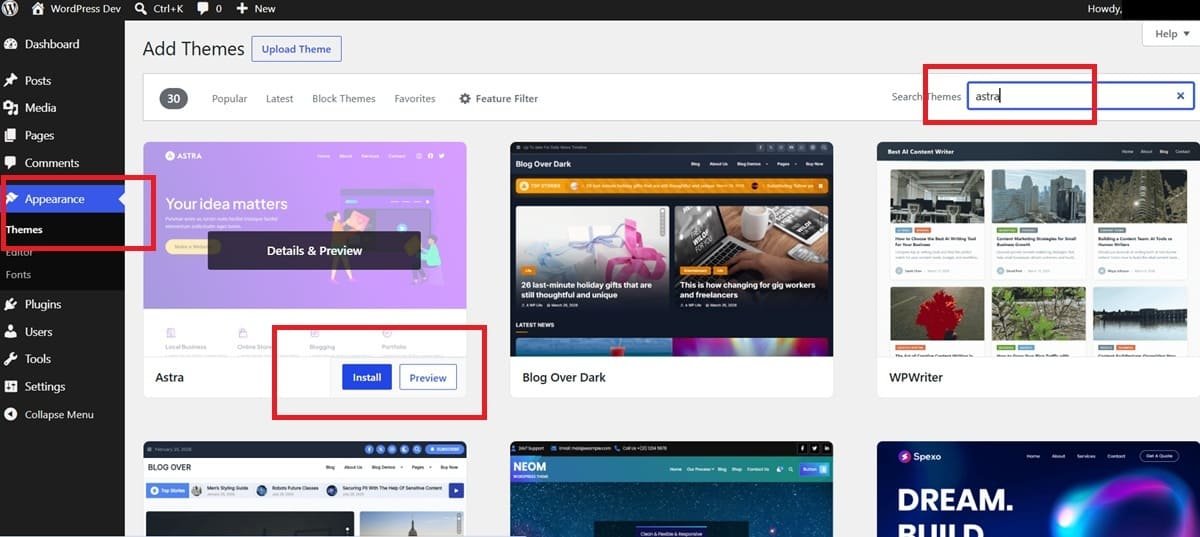
- Switch to Astra or GeneratePress — both load under 50KB and are built for speed
- If you’re on a heavy ThemeForest salon theme, this single switch can improve your PageSpeed score by 15–25 points
- Use Astra’s beauty starter templates to maintain a professional design without sacrificing speed
I covered all the best lightweight themes for salon websites in detail in my WordPress Themes post — read it before switching.
Expected improvement: Dramatic on sites running heavy themes — often the second biggest improvement after hosting.
Step 5 — Audit and Remove Unnecessary Plugins
What it is: Reviewing every active plugin on your WordPress site and removing anything you don’t actively need.
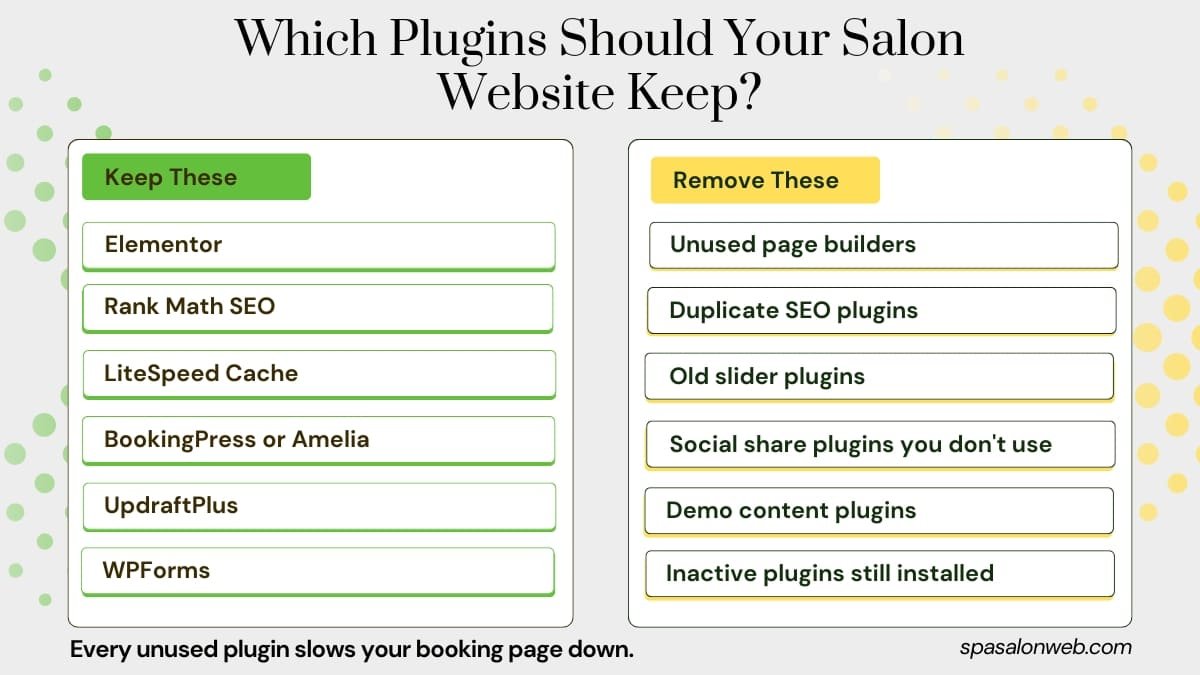
Why it matters for salons: Every active plugin adds PHP code that runs on every page load. Most salon websites I audit have 5–10 plugins installed that are either inactive, redundant, or completely forgotten. Each one adds weight and potential conflicts.
How to do it:
- Go to Plugins → Installed Plugins
- For every active plugin ask: “Is this actively doing something on my live website right now?”
- If the answer is no — deactivate and delete
- Look for redundancy: if two plugins do the same job, keep the lighter one
- Never keep page builder plugins (like WPBakery or Divi) if you’re using Elementor — conflicting builders add massive unnecessary code
Essential plugins for a salon website (keep these):
- Elementor (page builder)
- Rank Math SEO
- LiteSpeed Cache
- BookingPress or Amelia (booking system)
- UpdraftPlus (backups)
- WPForms (contact form)
Everything else — evaluate carefully. You can find my full recommended plugin list on my Recommended Tools page.
Expected improvement: Noticeable — especially on plugin-heavy sites that have accumulated tools over time.
Step 6 — Enable a CDN
What it is: A Content Delivery Network serves your website files from a server physically closest to each visitor’s location.
Why it matters for salons: If your salon website is hosted in the US but a potential client in the UK visits your site — without a CDN, their browser has to fetch files from across the Atlantic. A CDN stores copies of your website files on servers worldwide and delivers them from whichever location is closest to your visitor.
How to do it with Hostinger:
- Log into your Hostinger hPanel
- Go to Performance → CDN
- Enable Cloudflare CDN integration — it’s included with your Hostinger plan
- Follow the on-screen setup (takes under 5 minutes)
For non-Hostinger users:
- Go to Cloudflare.com and create a free account
- Add your website domain
- Update your domain nameservers to Cloudflare’s (your domain registrar handles this)
- Enable the free CDN — no cost for basic CDN functionality
Expected improvement: Faster load times for all visitors — most noticeable for international traffic and mobile users on slower connections.
Step 7 — Fix Your Core Web Vitals
What it is: Google’s three specific performance metrics that directly affect your search rankings.
Why it matters for salons: Google uses Core Web Vitals as a ranking factor for local search results. Poor scores hurt your position when local clients search “salon near me” or “spa in [your city].”
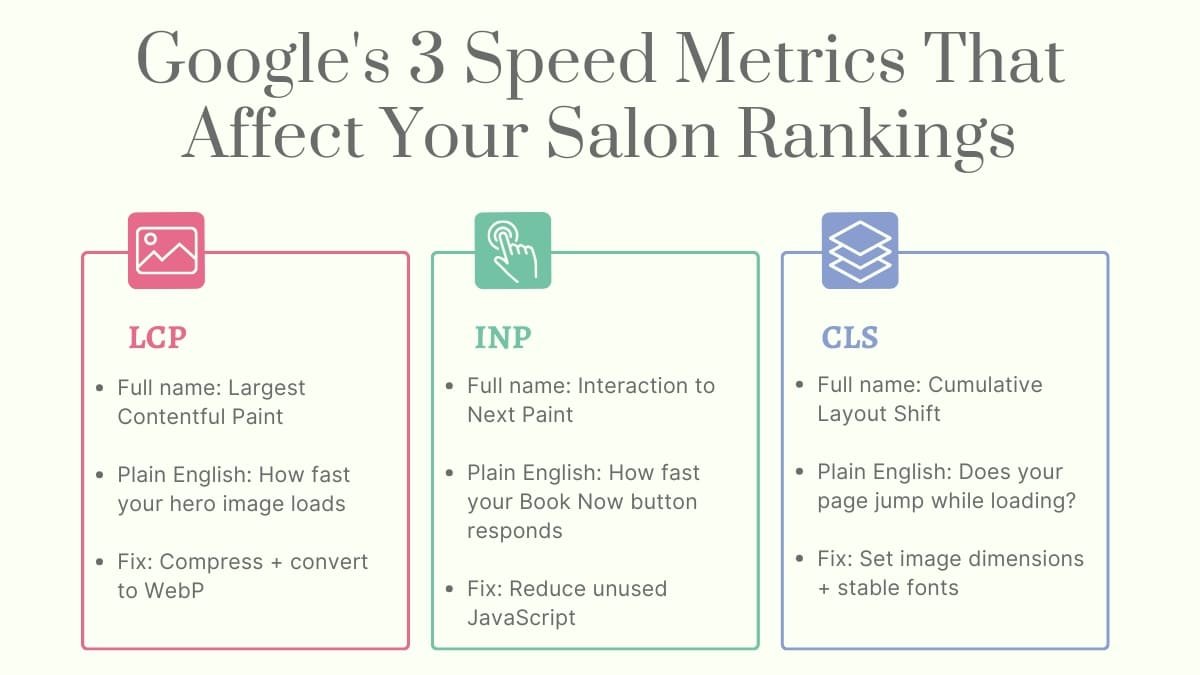
The three metrics — in plain English:
LCP (Largest Contentful Paint) How fast your main image or heading loads. For most salon websites this is your hero image.
- Fix: Compress and resize your hero image (Step 3), convert to WebP, add
loading="eager"attribute to the hero image in Elementor’s advanced settings
INP (Interaction to Next Paint) How fast your booking button or any interactive element responds when clicked.
- Fix: Reduce JavaScript — remove unused scripts, deactivate any plugin that adds JS you’re not using, enable JS deferral in LiteSpeed Cache settings
CLS (Cumulative Layout Shift) Whether your page jumps or shifts while loading — that annoying moment when you’re about to click “Book Now” and the button moves.
- Fix: Set explicit width and height on all images in WordPress media library, avoid late-loading font changes, don’t use ads or embeds that load after the page content
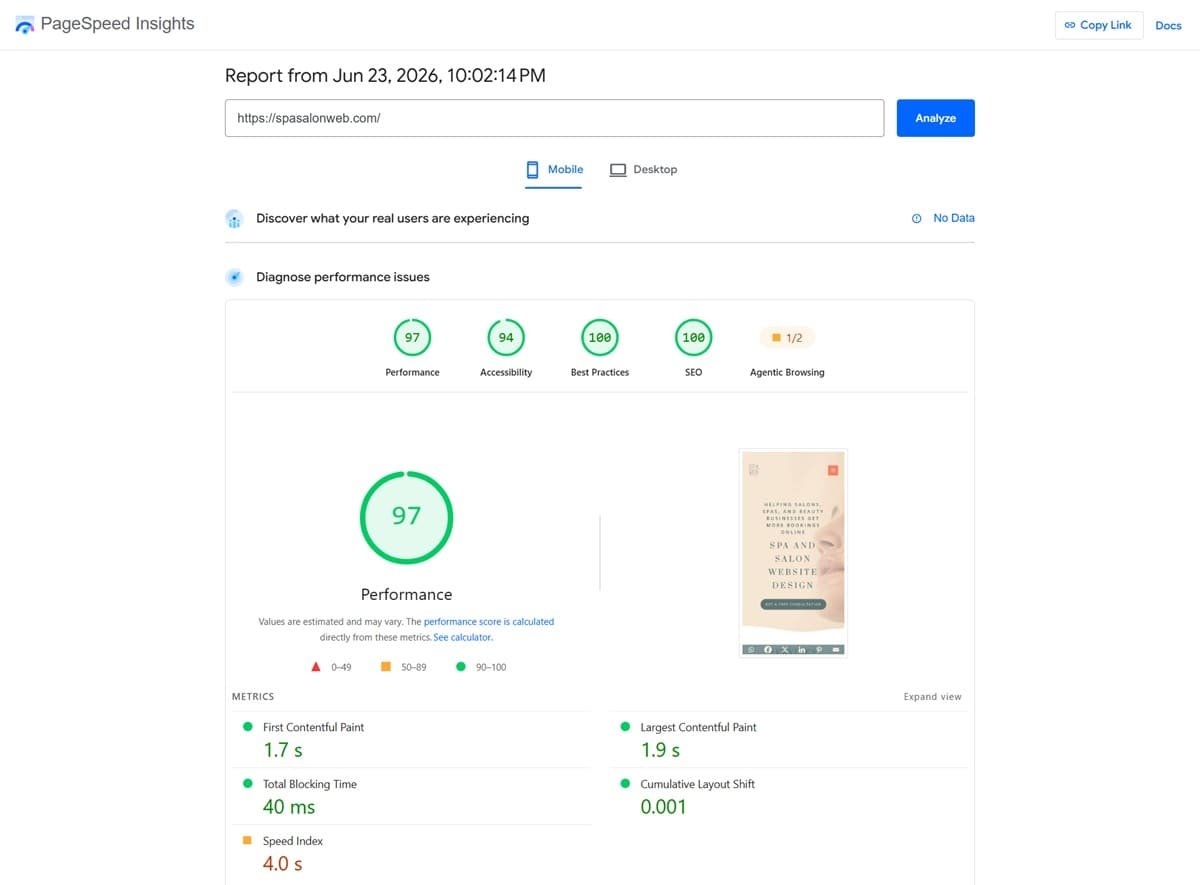
How to check your scores: Google PageSpeed Insights shows all three scores — aim for green (Good) on all three. Fix LCP first as it has the biggest impact on salon websites specifically.
Expected improvement: Better Google rankings for local search terms — the most valuable long-term outcome of speed optimization for salon businesses.
Step 8 — Test, Measure, and Verify
What it is: Re-testing your speed after completing all steps to measure the real improvement.
How to do it:
- Go back to GTmetrix and run a new test
- Run Google PageSpeed Insights again
- Compare your new scores to the screenshots you took before starting
- Check your Core Web Vitals scores specifically — all three should be in the green or yellow range
What good results look like:
- GTmetrix grade: A or B
- Load time: under 3 seconds
- PageSpeed mobile score: 80+
- All Core Web Vitals: Good or Needs Improvement (not Poor)
If scores are still low after all 8 steps: The most common remaining issues are: a heavy third-party booking widget loading slowly, Google Maps embed causing render delays, or a poorly coded plugin adding excessive JavaScript. Check the GTmetrix waterfall report — it shows exactly which file is taking the longest to load.
Real Results — Before and After
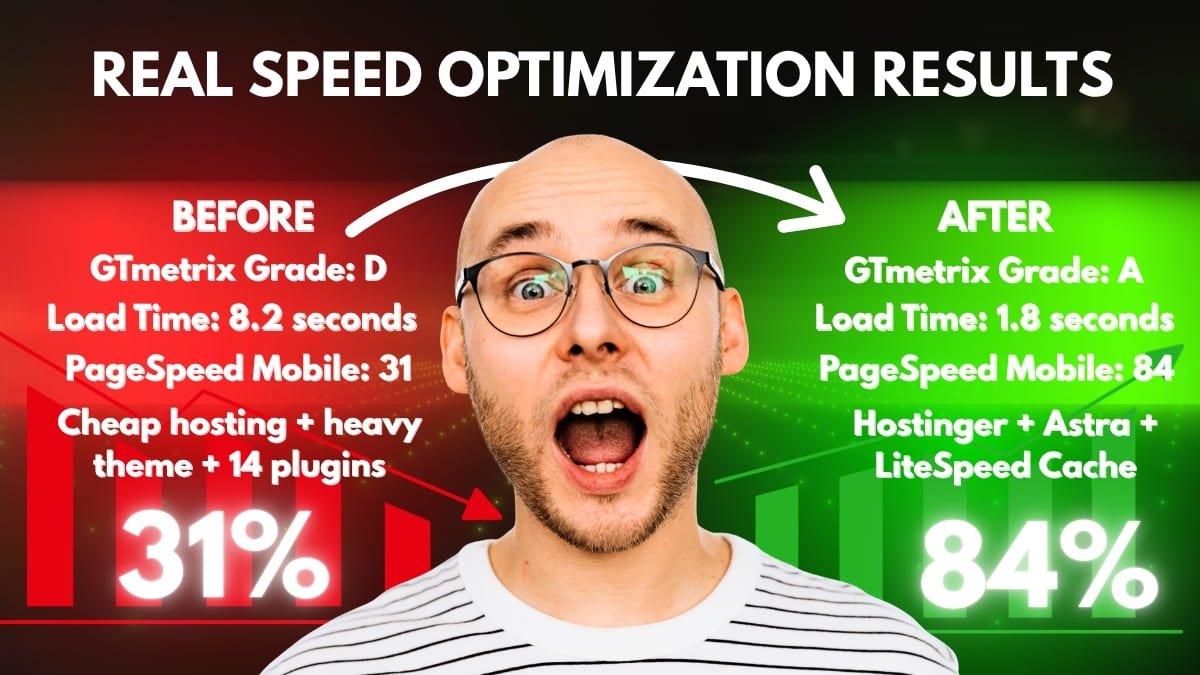
One of my recent clients — a beauty spa in Canada — came to me with a GTmetrix grade of D and a mobile load time of 8.2 seconds. She was on cheap shared hosting, running a heavy ThemeForest salon theme, and had 14 active plugins installed — 6 of which were completely unused.
After completing all 8 steps — moving to Hostinger, switching to Astra, installing LiteSpeed Cache, compressing images, and removing 7 unnecessary plugins — her GTmetrix grade went to A with a 1.8 second load time. Her Google PageSpeed mobile score went from 31 to 84. She messaged me two weeks later to say her bounce rate had dropped and she was seeing more completed bookings through her website.
The biggest gains came from Steps 1, 3, and 4 — hosting, images, and theme. Those three alone accounted for most of the improvement.
Speed Optimization Checklist
Save this and work through it in order:
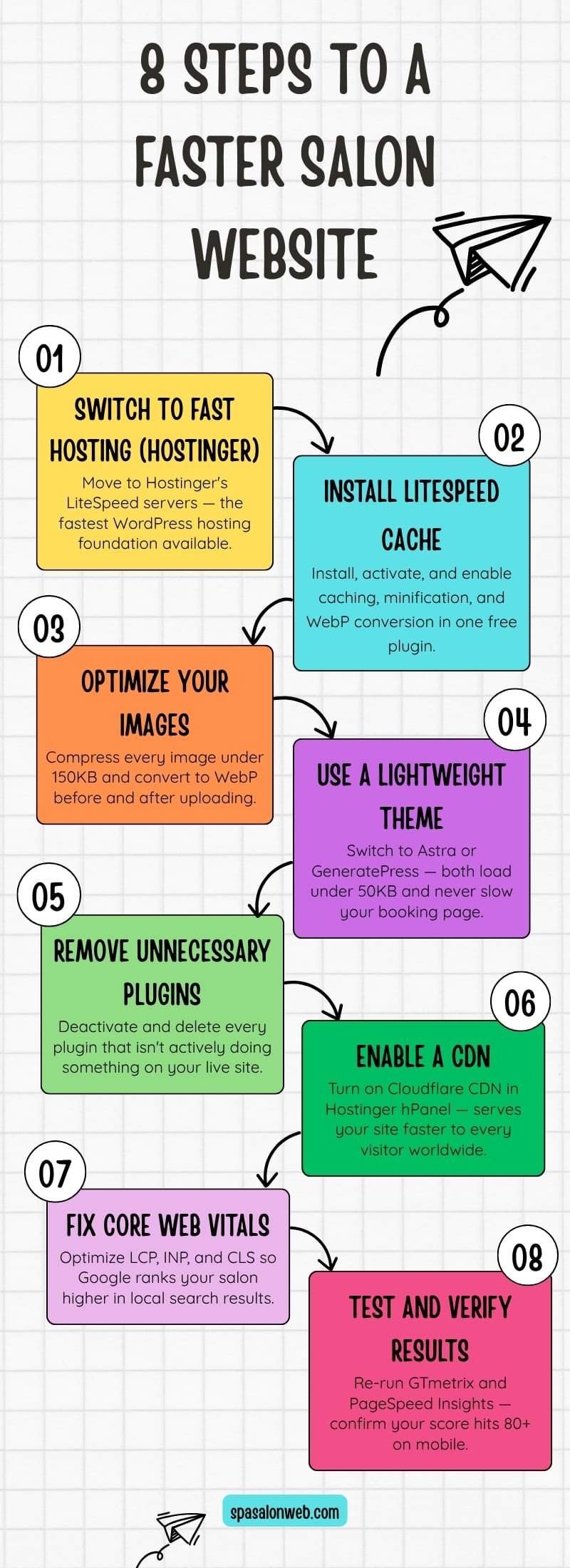
✓ Test current speed on GTmetrix and PageSpeed Insights — screenshot scores
✓ Switch to Hostinger (LiteSpeed hosting)
✓ Install and configure LiteSpeed Cache plugin
✓ Compress and resize all images — enable WebP conversion
✓ Switch to lightweight theme (Astra or GeneratePress)
✓ Audit plugins — deactivate and delete anything unnecessary
✓ Enable Cloudflare CDN through Hostinger hPanel
✓ Fix Core Web Vitals — LCP, INP, and CLS
✓ Re-test on GTmetrix and PageSpeed Insights — compare results
Ready to Speed Up Your Salon Website?
Want faster hosting as your foundation? Switch to Hostinger — LiteSpeed servers, 100GB storage, free domain, and one-click WordPress installation from $2.99/month. It’s the single biggest speed improvement you can make and the foundation everything else builds on.
Want me to handle your complete speed optimization? Check my Fiverr packages — I’ll audit your current website, implement all 8 steps, and deliver a fully optimized salon website with a verified PageSpeed report. You focus on your clients. I’ll handle the technical side.
A faster salon website isn’t a luxury — it’s a booking conversion tool. Every second you save keeps one more client from leaving before they complete their appointment.
Have a question about speeding up your specific salon website? Drop it in the comments — I reply to every one.
Frequently Asked Questions — how to speed up salon website
Q1: Why is my salon website so slow on mobile?
A: The most common causes are unoptimized images, a heavy WordPress theme, slow hosting, and too many active plugins. Salon websites are especially vulnerable to slow mobile speeds because they’re image-heavy by nature — gallery photos, staff portraits, and treatment room images add up fast. Start by testing your speed on Google PageSpeed Insights, then work through the 8 steps above in order. Most salon websites see the biggest improvement from fixing hosting, images, and theme first.
Q2: How long does it take to speed up a salon website?
A: If you follow all 8 steps in this guide, expect 2–4 hours of work spread across one day. Switching hosting takes the longest if you’re migrating from another provider. Installing and configuring LiteSpeed Cache takes under 30 minutes. Compressing existing images in bulk can take an hour depending on how many you have. The results are permanent — you do this once and your website stays fast.
Q3: What is a good PageSpeed score for a salon website?
A: Aim for 80+ on mobile and 90+ on desktop in Google PageSpeed Insights. A score above 90 on mobile is excellent and puts you ahead of most salon websites in your local area. Anything below 50 on mobile is hurting your Google rankings and your booking conversion rate. The steps in this guide consistently bring salon websites from the 30–50 range up to the 80–90 range when followed completely.
Q4: Does website speed affect my salon's Google rankings?
A: Yes — directly. Google uses Core Web Vitals (LCP, INP, and CLS) as ranking factors for local search results. A slow salon website ranks lower than a fast competitor even if your content and reviews are stronger. For local searches like “hair salon near me” or “spa in [your city]” — page speed is one of several factors Google weighs when deciding which businesses to show first. Fixing your speed is one of the most impactful local SEO improvements you can make.
Q5: Is LiteSpeed Cache free and does it work on any host?
A: LiteSpeed Cache is completely free. However it works best — and delivers its full range of features — on hosting that runs LiteSpeed servers, like Hostinger. On Apache or Nginx-based hosting, some LiteSpeed Cache features still work but the page caching performance is reduced. If you’re on Hostinger, LiteSpeed Cache is the only caching plugin you’ll ever need. If you’re on a different host without LiteSpeed servers, WP Rocket or W3 Total Cache are solid alternatives.
Q6: How many plugins should a salon website have?
A: There’s no strict number limit, but I recommend keeping active plugins to 8–10 maximum for a standard salon website. Every plugin adds code that runs on every page load. The essentials are: a page builder, SEO plugin, caching plugin, booking system, backup plugin, and contact form plugin. Everything beyond that should have a clear, active purpose. Deactivating unused plugins is one of the quickest speed wins with zero downside.
Q7: Do I need to compress images that are already on my salon website?
A: Yes — if you’ve been uploading uncompressed images since your site launched, those existing images are slowing down every page they appear on. LiteSpeed Cache can optimize your existing images in bulk through the Image Optimization panel — just click Send Optimization Request and it processes everything automatically. For images not yet converted to WebP, this single action can reduce your total image weight by 25–40% across your entire website.
Q8: Will speeding up my salon website affect its design or appearance?
A: No — when done correctly, speed optimization is invisible to visitors. Your design, layout, colors, and images all look exactly the same. The only visible change is that everything loads faster. The one exception to watch for: if you enable CSS/JS minification in LiteSpeed Cache and notice any visual glitches or broken layouts, disable the “Combine CSS” and “Combine JS” options — some themes and plugins don’t handle combined files perfectly. Everything else in this guide is completely safe to implement on a live salon website.